
RoboForm vs LastPass Vs. Google Password Manager Which Is Best for You
boForm vs LastPass Vs. Google - Password managers all promise the same thing: fewer forgotten logins, stronger passwords, and less typing. The real question is which one you can trust, keep using, and recover from when something goes wrong.
RoboForm vs LastPass Vs. Google
The problem with just using Google Password manager in Google Chrome is that we say and think that we'll never hit the Cntrl + H (History), or click on the three horiztontal bars for settting and clear our password data. However, at some point what happens is that I burn the midnight oil and accidently delete the passwords, when I need to clear my cache to fix a bug in website loading/ speed/ logins. Thus, comes Roboform, my favorite (seemless UX), and LastPass which is okay in my opinion.
RoboForm, LastPass, and Google Password Manager are not the same kind of product. RoboForm and LastPass are dedicated password managers. Google Password Manager is built into Chrome, Android, and your Google account. That difference matters more than any single feature list.
Here is the short version. RboForm vs LastPass Vs. Google
Google Password Manager is best for simple, everyday use if you live in Chrome and Android. RoboForm is the best all-around choice of these three if you want a dedicated password manager without much fuss. LastPass still has useful features, but its security history makes it harder to recommend as the default choice.
So, is it a tie? Not exactly. It depends on what you need. But if the question is “Which is better Roboform, lastpass, google password manager or a tie, neither.” the most honest answer is this: RoboForm wins for most people who want a real password manager, Google wins for convenience, and LastPass is only the right pick for a narrower group.

The short answer depends on how you use the internet
The best password manager is the one that fits your devices, habits, and risk level. A powerful app is not helpful if you ignore it. A convenient tool is not enough if it leaves gaps you care about.
Think of the choice this way.
Best fit | Pick |
You use Chrome and Android, want something free and simple, and do not want to install another app | Google Password Manager |
You want a dedicated password manager with strong form filling, cross-platform support, and less drama than LastPass | RoboForm |
You already use LastPass, like its sharing and admin tools, and are comfortable with its recent security track record | LastPass |
You want open-source software, advanced security controls, or a popular premium family setup | Consider another password manager too |
That last row matters. This comparison is about RoboForm, LastPass, and Google Password Manager, but they are not the only serious options. If none of these feels right, that does not mean password managers are a bad idea. It means this particular shortlist may not match your needs.
For a typical person in the US with a phone, a laptop, a handful of banking logins, streaming accounts, email, shopping sites, and work tools, the winner comes down to three questions.
Do you want the easiest possible setup?
Do you want a separate vault that works across many browsers and devices?
Do you care more about features or recent trust history?
Google answers the first question well. RoboForm answers the second one well. LastPass has a harder time with the third.
How they compare on the things that matter
A password manager should do more than remember passwords. It should create strong passwords, save them reliably, fill them in the right places, warn you about weak or reused passwords, and make recovery realistic without being careless.
Here is how the three compare where it counts.
Security and trust are not the same thing
All three tools are designed to protect passwords, but they ask for different kinds of trust.
RoboForm uses a traditional password manager model. You create a master password, store logins in an encrypted vault, and use browser extensions or apps to fill them. This setup is familiar and gives you a clear boundary between your password vault and the rest of your online life.
LastPass also uses a dedicated encrypted vault model. On paper, that is a good model. The issue is trust. LastPass publicly disclosed security incidents in 2022, including the theft of customer vault backup data. The vault passwords were encrypted, but some metadata was not. That does not mean every LastPass account was immediately exposed. It does mean users had to think harder about master password strength, old reused passwords, and whether they still trusted the company’s security practices.
Google Password Manager protects passwords through your Google account and the security of Chrome, Android, and Google services. For many people, that is convenient because they already protect their Google account with two-step verification or passkeys. The tradeoff is concentration. If your Google account is compromised, your email, saved passwords, browser sync, and recovery options may all be tied together.
A dedicated vault is not automatically safer than Google. Google has massive security resources. But a dedicated vault can reduce how much one account controls. If your Google account already acts as the recovery hub for your whole life, adding every password to it may feel too centralized.
The practical security ranking looks like this:
RoboForm
Best balance of dedicated-vault security and everyday usability.
Google Password Manager
Safe enough for many people, especially with strong Google account protection.
LastPass
Feature-rich, but trust is the weak point because of its public breach history.
That ranking assumes you use each one correctly. A weak master password, no two-factor authentication, and reused passwords can ruin any setup.

Daily use is where Google feels easiest
Google Password Manager has one major advantage: it is already there.
If you use Chrome on a laptop and Android on your phone, Google can save and fill passwords with very little setup. It also checks for compromised, weak, or reused passwords through Google’s password checkup features. For someone who has never used a password manager, that low-friction start matters.
You do not have to learn a new app. You do not have to install a browser extension in most cases. You save a login once, and it often appears where you expect it.
RoboForm takes a little more setup, but not much. After you install the app and browser extension, it can capture logins, fill passwords, generate new ones, and store identity details for forms. RoboForm has long been known for form filling, and that remains one of its better everyday strengths. If you fill out shipping forms, account registrations, or long personal info fields often, RoboForm can feel more complete than Google.
LastPass is also easy to use day to day. Its browser extensions and apps are familiar, and its interface is built around saved logins, notes, cards, and sharing. If you already know LastPass, the migration cost of switching away may be the biggest reason to stay.
For pure convenience, the ranking is different:
Google Password Manager
RoboForm
LastPass
LastPass is not difficult. It simply loses points because ease of use is no longer enough to overcome the trust concerns for many people.
Password generation and autofill are solid across all three
At a basic level, each product can generate strong passwords and fill them into websites. That is the core job.
Where you may notice the difference is in edge cases.
Google Password Manager works best inside Google’s world. Chrome and Android are its natural home. If you use Safari, Firefox, Windows apps, iPhone apps, or multiple browsers, Google can feel less complete.
RoboForm is better when you want one password manager across many places. It supports common browsers and major device platforms, so it is a stronger fit if your tech life is mixed. For example, you might use a Windows laptop, an iPhone, Chrome for personal browsing, and Firefox for certain sites. A dedicated password manager handles that kind of setup more naturally.
LastPass also has broad platform support. If you use many devices, it can still work well. The feature set is not the issue. The question is whether you want to build your password life around it now.
The best choice by device setup looks like this:
Your setup | Better choice |
Mostly Chrome and Android | Google Password Manager |
Mixed browsers and mixed devices | RoboForm |
Existing LastPass setup with many shared items | LastPass may be easiest to keep |
Apple-only setup | None of these is the obvious default, compare with iCloud Keychain too |
Sharing is better with dedicated password managers
Password sharing is one of the clearest limits of Google Password Manager. It can handle basic personal password storage well, but if your main need is sharing logins with a partner, family member, roommate, or small team, a full password manager usually feels better.
RoboForm supports secure sharing, which makes it useful for couples, families, and small groups that need shared access without texting passwords. It is also useful for shared household accounts, such as utilities, streaming, school portals, or travel accounts.
LastPass has long been known for sharing features. This is one reason some users stay with it. If your family or team already has a shared LastPass setup, moving can take planning. You need to export, import, re-check shared folders or collections, and change high-risk passwords afterward.
Google is fine for one person. RoboForm and LastPass are better when other people need access.
Recovery can make or break the experience
Every password manager has a hard problem: helping you recover access without making it easy for someone else to break in.
With RoboForm and LastPass, your master password matters a lot. If you forget it, recovery may be limited depending on your settings, devices, and account state. That can feel scary, but it is also part of the security model. A vault that anyone can reset easily is not a very secure vault.
With Google Password Manager, recovery is tied to your Google account. That can be easier because many people already have recovery email addresses, phone numbers, device prompts, and two-step verification set up. But it also creates a major risk: if your Google recovery options are weak, your password manager is weak too.
For all three, the safest setup includes:
A long, unique master password or Google account password
Two-factor authentication or passkeys where available
Updated recovery information
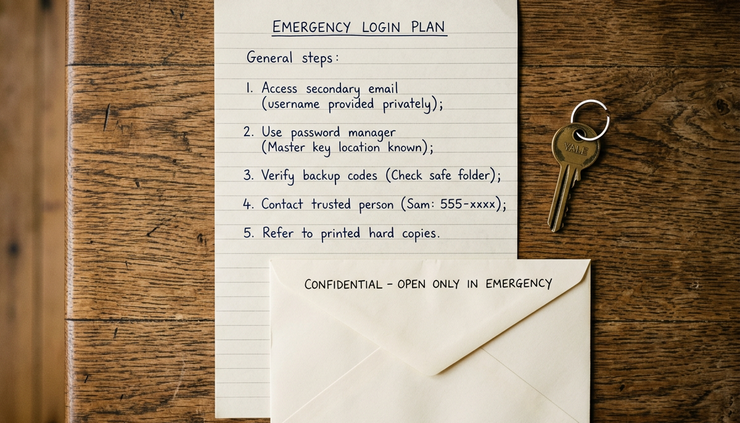
A printed emergency sheet stored safely at home
A plan for trusted family access if something happens to you
Do not skip the emergency plan. Password managers are great until a family member needs access to insurance, banking, cloud photos, or home services and no one knows where anything is.
RoboForm is the best pick for a dedicated password manager
RoboForm is not the flashiest name in password management, but it does the job well. That is its appeal.
It is a good fit if you want a real password manager that is separate from Google, works across devices, and does not ask you to accept LastPass’s recent baggage. It is especially strong if you care about form filling and want something straightforward.
The biggest reason to choose RoboForm is balance. It gives you the main benefits people expect from a password manager without making the experience feel too technical.
RoboForm is best if you want:
A dedicated encrypted vault
Good browser filling and form filling
Cross-device access
Secure password sharing
A tool that works outside Chrome and Android
Less dependence on one Google account
It is also a sensible choice for someone who is leaving LastPass. The mental model is similar enough that the switch should feel manageable. You export your vault, import it into RoboForm, check that key logins work, then change your most sensitive passwords.
RoboForm is not perfect. Its interface can feel more practical than polished. Some people may prefer the look and feel of newer password managers. If you want advanced business controls, open-source transparency, or the broadest third-party security reputation, you may want to compare other products too.
But among these three, RoboForm is the safest general recommendation for someone who says, “I want a proper password manager and do not want to overthink it.”
RoboForm strengths
Dedicated vault
Strong form filling
Works across common platforms
Good fit for mixed devices
RoboForm drawbacks
Less automatic than Google
Interface may feel plain
Not the obvious pick for people who only use Chrome and Android
LastPass is useful, but harder to recommend
LastPass used to be one of the easiest password managers to recommend. It was well known, easy to use, and popular with individuals, families, and businesses.
The feature set is still useful. LastPass can save passwords, generate strong ones, fill logins, store secure notes, and share access. If you are already using it and have taken steps to protect your vault, you may not need to panic-switch overnight.
But new users should think carefully.
The 2022 incidents changed how many people view LastPass. The main concern is not only that a breach happened. Security incidents can happen to serious companies. The concern is that password managers hold unusually sensitive data, so trust and response matter a lot.
If you stay with LastPass, take these steps:
Make sure your master password is long, unique, and not based on a phrase you use anywhere else
Turn on two-factor authentication
Change passwords for critical accounts, such as email, banking, cloud storage, and password recovery accounts
Remove old logins you no longer need
Watch for reused passwords and replace them
Review shared access
LastPass may still make sense if your family or team is already set up there and the cost of moving is high. It may also fit if you value its sharing workflow and are comfortable with the company’s current direction.
For a brand-new user choosing from scratch, LastPass would not be my first pick. It has too much to overcome when RoboForm and Google Password Manager both cover easier use cases.
Google Password Manager is best for convenience
Google Password Manager is the easiest answer for people who want better password habits without installing anything new.
If you use Chrome, sign into your Google account, and carry an Android phone, it can feel almost invisible. It suggests strong passwords, saves them, fills them, and warns you about some password problems. That is a huge improvement over reused passwords, sticky notes, or saving everything in a notes app.
Google Password Manager is best if you want:
No extra app to manage
Free password storage built into Chrome and Android
Easy syncing through your Google account
Strong integration with passkeys and Google account security
Basic password checkup tools
This makes it great for beginners. It is also good for people who will never use a separate password manager consistently. A tool you actually use is better than a better tool you abandon.
The main downside is lock-in. Google Password Manager feels best inside Google’s world. If you use multiple browsers, Apple devices, Windows apps, or shared password workflows, you may outgrow it.
The second downside is account concentration. Your Google account may already control your email, calendar, photos, documents, YouTube, Android backup, and account recovery for other services. Adding all passwords to the same account can be convenient, but it raises the stakes.
If you choose Google Password Manager, secure your Google account first:
Use a strong, unique Google password
Turn on two-step verification or passkeys
Review recovery email and phone settings
Remove old devices from your account
Keep your phone and browser updated
Do not stay signed in on shared devices
Google Password Manager is not “bad” because it is built into a browser. For many people, it is a major security upgrade. It is just not the best dedicated password manager in this group.
The verdict is RoboForm for most, Google for simplicity, LastPass for specific cases
If you want one clear winner, choose RoboForm. It gives you the strongest overall mix of dedicated password management, cross-platform use, form filling, and trust compared with the other two.
If you want the simplest option and mostly use Chrome or Android, choose Google Password Manager. It is convenient, built in, and good enough for many everyday users when the Google account itself is well protected.
If you already use LastPass, you do not have to make a rushed decision. But if you are starting fresh, it is hard to place LastPass above RoboForm or Google. Its features are solid, yet trust is part of the product. For a password manager, trust is not optional.
Here is the clean final ranking:
RoboForm
Best overall choice of the three for a dedicated password manager.
Google Password Manager
Best free and simple choice for Chrome and Android users.
LastPass
Still capable, but no longer the easiest recommendation for new users.
The best next step is simple. Pick one password manager, secure its main account, then change your most important passwords first: email, banking, cloud storage, phone carrier, and accounts used for password recovery. A perfect tool matters less than a clean, consistent setup you will keep using.



Comments